
Who is this for? All users with access to Crexendo Business Marketing Messaging Automations, especially anyone setting up keyword-based workflows, opt-ins/opt-outs, and forwarding rules.
Why This Matters
Automation Actions are the “do something” steps that run after an automation is triggered (for example, when a contact replies with a keyword). Every automation requires at least one action.
Each action has an Action Name (a label you choose) so you can identify it later when reviewing or editing your automation.

Before You Start
- Access: any user with access to Business Marketing Messaging Automations.
-
You'll need: the automation you want to add the action to, and any Contact List the action will use (the list must already exist).
Add an Action to an Automation
- Open the automation you want to edit.
- In the Actions area, choose an action type from the action dropdown.
- Enter an Action Name (a short, descriptive label).
- Complete the required settings for that action (examples below).
- Click Save Action (typically in the bottom-right of the action drawer/panel).
TIP: Use consistent naming so actions are easy to scan later. (E.g., Auto-Reply | HOURS, Forward | After Hours → On-Call, List | Add → VIP.)
Automation Action Types and Settings
Below are common actions you can add to your automations, what they do, and how to configure them:
Add to Group (List)
Automatically adds a contact to a selected Contact List when the automation triggers. This is commonly used for opt-ins and list-building.
| Common use cases |
|
| Settings to configure |
|

Remove from Group (List)
Automatically removes the contact from a selected list when the automation triggers (only applies if the contact is already in that list).
| Common use cases |
|
| Settings to configure |
|

Send SMS Reply
Automatically sends a reply back to the contact who triggered the automation. This is ideal for confirmations, FAQs, and acknowledgement messages.
| Common use cases |
|
| Settings to configure |
|

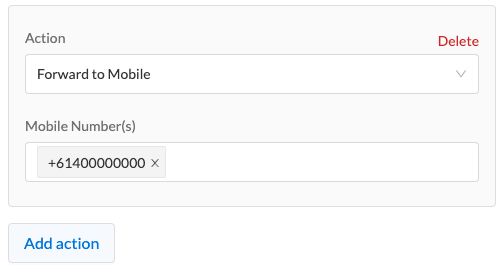
Forward to Mobile
Automatically forwards inbound responses that trigger the automation to one or more mobile numbers. This is helpful for on-call staff, managers, or teams that need real-time visibility.
| Common use cases |
|
| Settings to configure |
|
Forward to Email
Automatically forwards inbound responses that trigger the automation to one or more email addresses. This is useful for shared inbox workflows, archiving, and basic triage.
| Common use cases |
|
| Settings to configure |
|

Unsubscribe
Automatically unsubscribes a contact when the automation triggers (commonly used for opt-out keywords). Once unsubscribed, the contact should no longer receive marketing messages.
| Common use cases |
|
| Settings to configure |
TIP: Pair this action with a Send SMS Reply action to confirm the opt-out. EXAMPLE: “You have been unsubscribed.” |

Forward to URL (Webhook / REST Integration)
Sends automation event data to a third-party system using a webhook-style request. This is commonly used to create or update records in other platforms (CRM, ticketing, forms, internal tools).
| Common use cases |
|
| Settings to configure |
|

Related Information
Troubleshooting
If something isn't working, find the problem that matches what you're seeing and check these, in order.
My action isn’t being applied
- Confirm you clicked Save Action after configuring the action.
- Verify the automation is enabled/active (if your system supports an enable toggle).
- Check that your automation’s conditions are being met (keywords, message type, time windows, etc.).
Add to Group / Remove from Group doesn’t work
- Make sure the target Contact List already exists.
- Confirm you selected the correct list in the action settings.
- If removing, verify the contact is already in that list.
Forward to URL fails or doesn’t reach my system
- Verify the endpoint URL is correct (including https:// if required).
- Confirm the correct HTTP Method is selected.
- If authentication is required, verify header key/value formatting.
- Check whether your endpoint expects parameters in the query string vs. request body.
- Still stuck? Contact Crexendo Support at 602-903-7271 or email support@crexendo.com and mention this article. Our team is happy to help!
FAQs
Do I need at least one action in every automation?
Yes. Automations require at least one action to perform a task after the trigger/conditions are met.
Can I use multiple actions in one automation?
Yes. A common pattern is Add to Group + Send SMS Reply (opt-in confirmation), or Forward + Auto-Reply (acknowledge + route internally).
What’s the best way to name actions?
Use descriptive names that include the purpose and destination.
EXAMPLE: Forward → Billing Email, Auto-Reply → HOURS, Add → VIP List.
Change Log
| Date | Description |
|---|---|
| Nov 26, 2026 | Reformatted to the new article template and updated search terms. No content changes. |