
Understanding Automation Conditions
Who is this Guide For?
- All users with access to Crexendo Business Marketing Messaging
Prerequisites
- Access to your Automation/Workflow builder (view or edit permissions)
- At least one automation created (or permission to create one)
Overview
Automation conditions define when an automation should trigger. You can use a single condition or combine multiple conditions to narrow down exactly which inbound messages should start your workflow.
Key idea: Add more conditions to reduce “false triggers” (messages that accidentally match your automation).
Where Conditions Fit in an Automation
In most automation builders, the Conditions area sits near the top of the automation configuration. Conditions are evaluated first; if they match, your automation actions run (auto-reply, forward to email/URL, tagging, routing, etc.).
Condition Types You Can Use
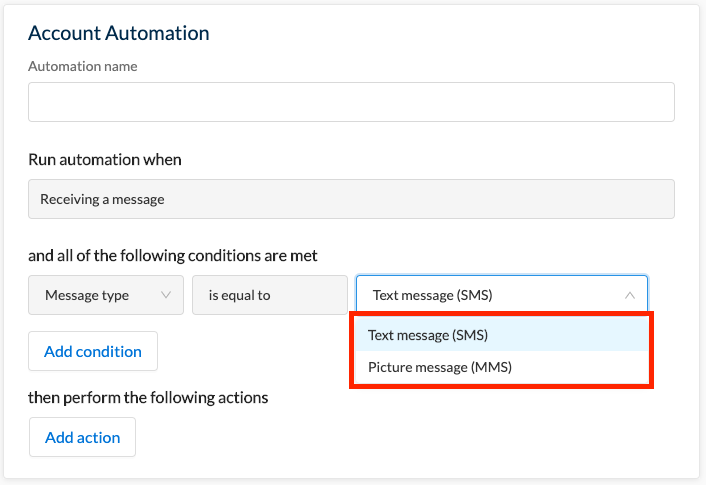
1) Message Type (Required)
Message Type is typically the one condition that is always present because automations are triggered by an inbound message. You can usually choose which message types qualify, such as:
- SMS (Text)
- MMS (Picture/Media)
Example use case: Require MMS to trigger a “damaged goods” flow where customers send a photo as proof.
2) Receiving Number
If your account has multiple receiving numbers, you can restrict an automation so it only triggers when replies are sent to:
- One specific number (recommended for campaigns or dedicated support lines)
- Multiple selected numbers
- Any number (broadest matching)
Why this matters: You can run multiple automations using the same keywords on different numbers without them conflicting.

3) Message Content (Keywords & Matching Rules)
Message Content conditions control keyword matching. Depending on your automation builder, you may be able to trigger when a message:
- Contains a specific keyword (or any keyword from a list)
- Contains all keywords in a set (e.g., “ORDER” and “STATUS” must both appear)
- Does not contain a specific keyword (or any from a list)
- Does not contain all keywords in a set
- Begins with a specific keyword (helpful for structured inputs like “JOIN John Smith”)

Practical tips for keywords
- Use “Begins with” for structured replies (ex: “RSVP YES”, “RSVP NO”).
- Use “Contains any” for flexible customer language (ex: “help”, “support”, “agent”).
- If triggers are too broad, switch to “Contains all” or add a Receiving Number condition.
4) Date & Time Received (Scheduling Windows)
Date/Time conditions let you restrict when an inbound message can trigger the automation. Common options include:
- Date & time window (only trigger between specific start/end dates or times)
- Start/finish points for the automation (useful for limited-time campaigns)
Common use cases:
- Event registrations that close after a deadline
- After-hours routing (forward responses to email/mobile outside business hours)

How to Build a Strong Condition Set
- Start with Message Type (required) and choose SMS or MMS.
- Add a Receiving Number if you have dedicated lines (support, marketing, billing, etc.).
- Define Message Content matching rules (contains/begins with/excludes).
- If needed, add a Date & Time window for business hours or limited-time flows.
- Test with real-world examples (including edge cases like misspellings or extra words).
Removing a Condition
If you no longer need a condition, most builders allow you to remove it using a trash/bin icon next to the condition.

Troubleshooting
My automation isn’t triggering
- Confirm the inbound message matches your Message Type (SMS vs MMS).
- Verify the reply is coming into the correct Receiving Number (if configured).
- Check Message Content logic:
- If using Contains all, all keywords must appear.
- If using Begins with, the first word(s) must match exactly.
- If using exclusions, make sure you didn’t accidentally block common words.
- Make sure the message arrived within your configured Date & Time window.
My automation triggers too often (false positives)
- Add a Receiving Number restriction to isolate traffic.
- Switch from Contains any to Contains all.
- Use Begins with for structured replies (ex: “INFO”, “STOP”, “JOIN”).
- Consider adding an exclusion keyword to filter out common unrelated messages.
FAQ
Do I have to use every condition?
No. Typically, only Message Type is required. All other conditions are optional and used to refine matching.
Can I reuse the same keyword across multiple automations?
Yes—this is commonly done by separating automations using the Receiving Number condition so they don’t interfere with each other.
When should I use MMS as a trigger?
Use MMS when the presence of media matters (photos for damage claims, proof of delivery images, document snapshots, etc.).
Need More Help?
If you need additional assistance, please contact Crexendo Support at 855-211-2255 or email us at support@crexendo.com — our team is happy to help!