
Who is this Guide For?
- All Users with access to Crexendo VIP Group Messaging
- Users sending marketing messages, staff alerts, or organization notifications
What You’ll Accomplish
- Create, save, send, schedule, and delete a Blast
- Understand Blast statuses (Draft / Send Now / Schedule)
- Apply compliance best practices to improve deliverability and reduce opt-outs
Overview
Blasts are a great way to send the same message out to a list of contacts. They are commonly used for marketing campaigns, staff alerts, and organization notification systems.
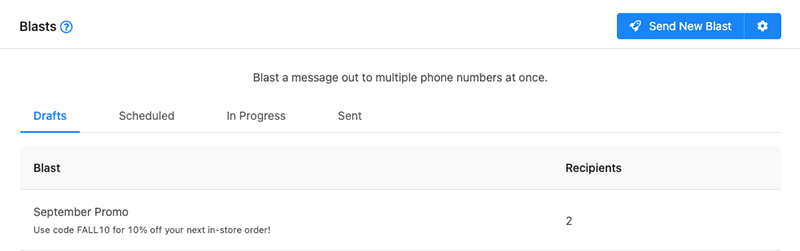
Create or Edit a Blast
- Click Send New Blast (top-right of the screen).
- Complete all required fields (marked with a red asterisk).
- Choose a Blast Status (Draft / Send Now / Schedule).
- Review the Compliance Footer (automatically appended to the message).
- Click Save Blast to save, send, or schedule.
Tip: Use Contact Lists to target the right audience before sending a Blast.
Blast Status Options
Draft
Saves the Blast in a draft state so you can return later to edit before sending or scheduling.
Send Now
Queues the Blast to be sent within the next several minutes.
Schedule
Allows you to select a timezone, date, and time for delivery.
Compliance Footer
The Compliance Footer is automatically appended to your message body. For best results, your compliance footer should include:
- Identifying information about the sender (brand/organization name)
- A brief explanation of why you are contacting the recipient (appointments, order details, alerts, etc.)
- Clear opt-out instructions (example: Reply STOP to unsubscribe)
Tip: A clear compliance footer builds trust and can reduce opt-outs by setting expectations for recipients.
Important Notes About Blast Deliverability
Note: Blasts use a simple time-based queueing system. Users and account types may have different limitations on how many bulk messages they can send/receive. If you experience deliverability issues, consider carrier limitations and plan your Blast volume accordingly.
Delete a Blast
You can delete Blasts that are in Draft or Scheduled status.
- Open the Draft or Scheduled tab.
- Select the Blast you want to delete to open the edit drawer.
- Scroll to the bottom of the drawer and click Delete Blast.
- Click OK to confirm deletion.
Best Practices
- Always obtain proper opt-in before sending marketing campaigns.
- Include clear brand identification and an opt-out option in the compliance footer.
- Be mindful of message length and content.
- Avoid content that could be considered spammy.
- Avoid URL shorteners (carriers often block links from common services like bit.ly or goo.gl).
Compliance Reminder: Do not send messages related to S.H.A.F.T. (Sex, Hate, Alcohol, Firearms, Tobacco — including cannabis).
Troubleshooting
My Blast is taking longer than expected to deliver
- Blasts are sent using a time-based queue and may take time depending on message volume.
- Carrier throughput limits can slow delivery for bulk sends.
- Consider scheduling during off-peak hours and spacing out large sends.
Recipients aren’t receiving messages
- Confirm contacts have opted in and have not opted out.
- Avoid URL shorteners that carriers may block.
- Review message content to ensure it does not appear spammy.
- If sending high volume, consider registering with The Campaign Registry.
FAQ
Can I delete a Blast after it’s sent?
No. You can only delete Blasts in Draft or Scheduled status.
What should I include in the Compliance Footer?
Include your organization name, why you’re contacting the recipient, and opt-out instructions (for example: Reply STOP to unsubscribe).
Need More Help?
If you need additional assistance, please contact Crexendo Support at 855-211-2255 or email us at support@crexendo.com — our team is happy to help!