
Who is this Guide For?
- All Users with access to Crexendo messaging
- Users who want faster replies, away messages, or keyword-based auto-replies
What You’ll Accomplish
- Create and edit Canned Responses (pre-written messages)
- Set up an Auto-Reply to Keyword
- Delete unused canned responses
- Mark a canned response as an Away Message
Overview
Canned Responses are pre-written messages you can use as:
- Replies to common inquiries
- Away messages
- Automatic replies triggered by keywords
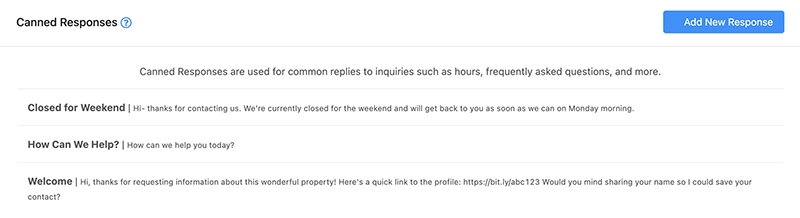
Create or Edit a Canned Response
Create a New Canned Response
- Click Add New Response (top-right of the screen).
- Complete all required fields (look for the red asterisk).
- Enter your message in Message Body.
- Click Add / Edit Canned Response to save.
Edit an Existing Canned Response
- From the list, click the canned response you want to edit.
- The edit drawer opens.
- Update the details as needed (required fields have a red asterisk).
- Click Add / Edit Canned Response to save.
Tip: Use clear titles so your team can find the right response quickly (for example: Hours of Operation, Pricing Request, Support Confirmation).
Set Up Auto-Reply to a Keyword
You can optionally enter a keyword into the Auto-Reply to Keyword field. When a message containing that exact keyword is received, the system automatically replies using the Message Body content.
Note: The keyword must match exactly as configured in Auto-Reply to Keyword.
Steps
- Create a new canned response or edit an existing one.
- Locate the Auto-Reply to Keyword field.
- Enter the keyword you want contacts to text (example: HOURS).
- Make sure your Message Body contains the reply you want sent.
- Click Add / Edit Canned Response to save.
Delete a Canned Response
- Click the canned response you want to delete (this opens the edit drawer).
- Click Delete Response at the bottom of the drawer.
- When prompted, click OK to confirm deletion.
Warning: Deleting a canned response permanently removes it. If you may need it later, consider editing instead.
Set a Canned Response as an Away Message
Away messages allow you to quickly use specific canned responses when you’re unavailable.

Steps
- Create a new canned response or click to edit an existing one.
- Under Message Body, find the Is Away Message switch.
- Toggle the switch to the right so it turns blue (enabled).
- Click Add / Edit Canned Response to save.
How to Confirm: In the canned response list view, a message icon appears indicating the response is available as an away message.
Troubleshooting
My auto-reply isn’t sending
- Confirm the contact texted the exact keyword configured in Auto-Reply to Keyword.
- Verify the canned response was saved using Add / Edit Canned Response.
- Check that the Message Body is not empty and contains the reply you want sent.
My away message isn’t showing up
- Open the canned response and confirm Is Away Message is toggled on (blue).
- Save changes using Add / Edit Canned Response.
- Look for the message icon in the list view to confirm it’s enabled.
FAQ
What can canned responses be used for?
Canned responses can be used for quick replies, away messages, and keyword-triggered automatic replies.
Does the keyword have to match exactly?
Yes. The system sends the auto-reply when it receives a message containing the exact keyword configured in Auto-Reply to Keyword.
Need More Help?
If you need additional assistance, please contact Crexendo Support at 855-211-2255 or email us at support@crexendo.com — our team is happy to help!
```