
Who is this Guide For?
- All Users with access to Crexendo VIP Group Messaging
- Users who want to schedule 1:1 follow-up messages to individual contacts
What You’ll Accomplish
- Create a reminder to send a scheduled message to an individual contact
- Edit or delete an existing reminder before it sends
- Identify dates that contain scheduled reminders on the calendar
Overview
Reminders let you schedule messages to be sent to individual contacts at a future date and time. This is useful for follow-ups, appointment reminders, and task-based outreach.
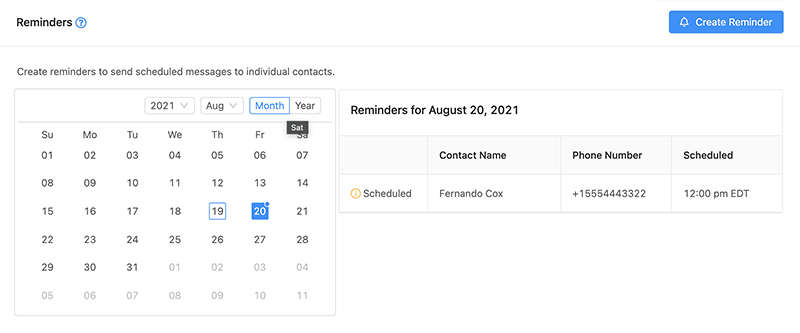
Tip: Dates that have messages scheduled display a blue dot above the day number.
Create a Reminder
- On the calendar, select the date you want the reminder to send.
- Click Create Reminder.
- Select a contact as the recipient.
- Select the timezone and the time to send the message.
- Enter your message.
- Click Save.
Result: Your reminder is scheduled and will appear on the selected date (with a blue dot on the calendar).
Edit a Reminder
- Select the date on the calendar that the reminder is scheduled for.
- A list of reminders for that date will appear on the right-hand side.
- Click the reminder you want to edit.
- Update the desired fields (contact, timezone/time, message, etc.).
- Click Update.
Note: Reminders can be edited or deleted up until their scheduled date/time.
Delete a Reminder
- Select the date on the calendar that the reminder is scheduled for.
- From the list on the right-hand side, click the reminder you want to delete.
- Click Delete to open the confirmation prompt.
- Click OK to confirm deletion.
Reminder: Once the scheduled send time passes, the reminder can no longer be edited or deleted.
Troubleshooting
I don’t see my reminder on the calendar
- Verify you clicked Save after entering your reminder details.
- Check the correct date on the calendar (look for the blue dot).
- Make sure you’re viewing the correct month/week if the calendar view can be changed.
I can’t edit or delete a reminder
- Reminders can only be edited or deleted before their scheduled date/time.
- If the scheduled send time has passed, create a new reminder for a future date instead.
My reminder sent at the wrong time
- Double-check the timezone selected when creating the reminder.
- Edit the reminder (if still before send time) and update the timezone/time, then click Update.
FAQ
What do the blue dots on the calendar mean?
A blue dot indicates there is at least one scheduled reminder/message on that date.
Can I schedule a reminder to multiple contacts?
Reminders are designed to send scheduled messages to individual contacts. For bulk messaging, use Blasts.
Need More Help?
If you need additional assistance, please contact Crexendo Support at 855-211-2255 or email us at support@crexendo.com — our team is happy to help!